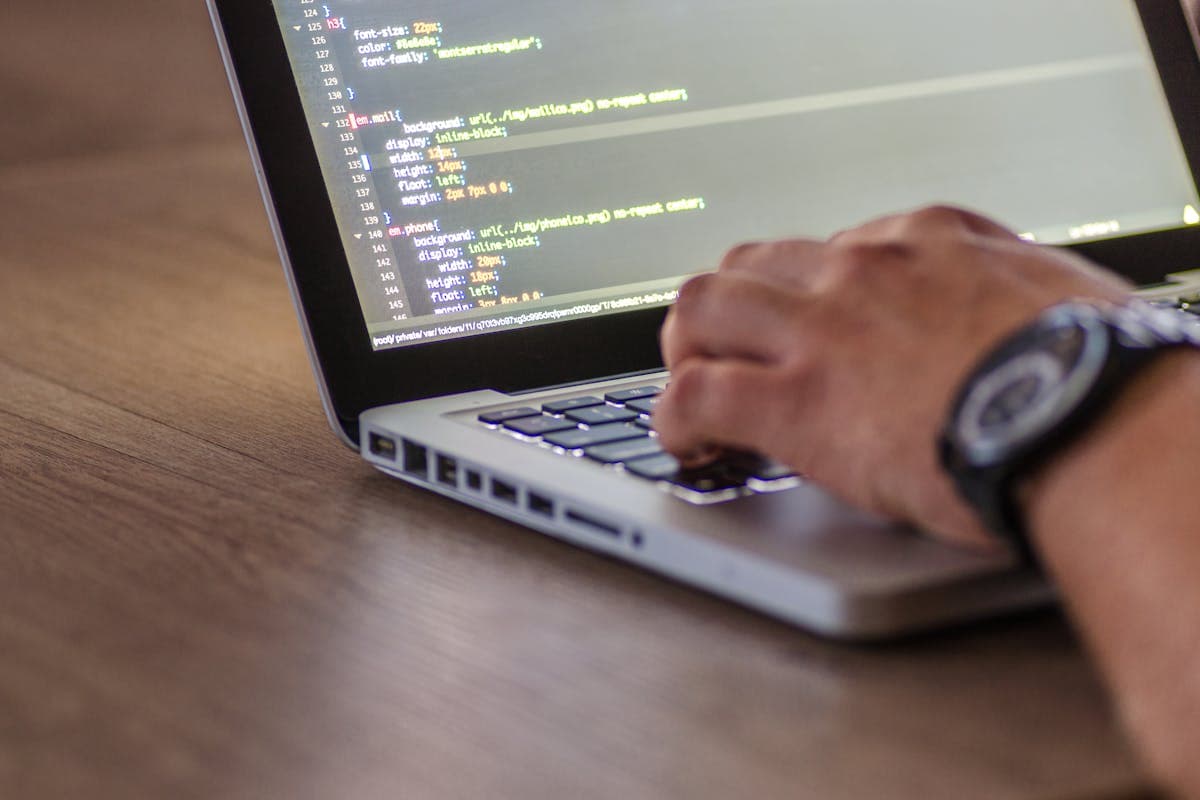
There is a specific frustration that every developer who tries to share code on social media eventually hits. A tweet with a raw code block looks like a mess. GitHub Gist links only work for people willing to click. Inline monospace text on LinkedIn renders inconsistently. But a well-formatted screenshot of the same code (dark background, syntax highlighting, subtle shadow, clean padding) gets saves, shares, and real engagement.
Code-to-image tools solve this problem. They take your raw source code, apply a syntax-highlighted theme, add a styled container (OS-style window frame, gradient background, or minimal card), and output an image file ready to drop anywhere: Twitter/X, LinkedIn, newsletters, slide decks, or blog posts. No design software required. No configuration files. Paste, adjust, export.
This guide covers what makes a code screenshot worth sharing, how to use a code to image converter effectively, and how to match your image dimensions to each major platform's display requirements.
Why Code as Images Beats Code as Text on Social Media
Posting raw code as text on social platforms is a losing strategy for three reasons.
Algorithm preference for images. Twitter/X, LinkedIn, and Instagram all give visual content higher reach than text-only posts. An image breaks the scroll; a wall of monospace text does not. Every major social platform consistently rewards image posts with more organic distribution than equivalent text posts.
Consistent rendering across devices. Code blocks in plain text break on mobile, line lengths vary by screen width, monospace fonts render at different sizes, and indentation collapses. An image renders identically on every device. What you see in your browser is what your audience sees on their phone.
Scannability and first impressions. A syntax-highlighted screenshot communicates "this is quality code" before anyone reads a single line. Language-appropriate coloring (blue for keywords, green for strings, orange for variables) helps readers parse the structure at a glance. Plain text requires the reader to do that parsing themselves, and most won't.
For documentation, slide decks, and blog posts, the argument shifts but remains equally strong: code screenshots are immune to accidental edits, copy-paste corruption, and formatting changes during export. The image is the ground truth.
The moment you switch from posting code as text to posting code as a styled screenshot, engagement typically jumps 2-4×. The same algorithm that rewards cat photos rewards well-crafted code images, because images stop scrolling and text does not.
The Anatomy of a Great Code Screenshot
Good code screenshots share five elements:
1. A focused, minimal snippet. Screenshots should show one concept, function, or pattern, not an entire file. The sweet spot is 15-30 lines. More than 40 lines produces text that is unreadable at typical social media image widths. Check your snippet before styling: if any single line exceeds 80-100 characters, it will either overflow the container or force a font size so small that everything becomes illegible on mobile. Use a character counter to verify line lengths before you start.
2. Appropriate syntax highlighting. The theme should match your context. Dark themes (VS Code Dark+, Dracula, One Dark) perform better for social media because they create high contrast against light feed backgrounds. Light themes (GitHub Light, Solarized Light) work better for documentation that sits against dark site backgrounds or for print-friendly materials.
3. A legible font. Monospace fonts designed for code (JetBrains Mono, Fira Code, Cascadia Code) are significantly more readable at small sizes than generic system fonts. Most code-to-image tools let you select the font; always prefer a purpose-built coding font over Courier.
4. Comfortable padding. Zero padding looks cramped; excessive padding wastes image real estate. A consistent 40-60px padding on all sides gives the code room to breathe without drowning it in whitespace.
5. A styled container. An OS-style window frame (with the three traffic-light dots) adds immediate visual context. A gradient background separates the card from the platform feed background. A subtle box shadow lifts the code block off the page. These details signal that the screenshot was intentionally produced rather than casually captured.
Good code screenshots share five elements: **1.
Step-by-Step: Using a Code to Image Tool
Open a code to image converter and follow these steps:
Step 1: Paste your snippet. Include only the relevant portion, function signature, key logic, or the specific pattern you are illustrating. Resist the urge to paste the full file "for context." Context comes from your caption, not the screenshot.
Step 2: Select the language. The tool uses this to apply accurate syntax highlighting. Selecting the wrong language produces garbled colorization that undermines readability. If your language is not listed, "Plain Text" is the correct fallback, unstyled but consistently readable.
Step 3: Choose a theme. For Twitter/X, LinkedIn, and Mastodon, start with a dark theme and check how it looks against both light and dark platform backgrounds, many platforms now support both modes. For documentation embeds, check your site's background color. Use the color contrast checker to verify that your syntax colors meet WCAG AA contrast requirements (minimum 4.5:1 ratio for normal-sized text). This matters especially for documentation that must be accessible to users with low vision.
Step 4: Set dimensions for your target platform. Platform-specific sizes prevent cropping or awkward whitespace in preview thumbnails. Calculate exact pixel dimensions using the aspect ratio calculator to match each platform's requirements without doing the math manually. Most tools let you set a custom width; height adjusts automatically to the code length.
Step 5: Export. Download as PNG (lossless, best for text sharpness) rather than JPEG (lossy compression produces visible artifacts around character edges). Export at 2× if the tool allows, retina and HiDPI displays render standard-resolution screenshots as noticeably blurry.
Platform Sizes for Code Screenshots
Different platforms display images at different aspect ratios. Getting the right size prevents unexpected cropping in feed previews.
Twitter / X
16:9 (1200×675px) is the safest ratio. The platform crops portrait images significantly in the feed; landscape images show fully inline. Code screenshots benefit from wider aspect ratios because code reads left-to-right, a wider frame fits more characters per line at a readable font size.
Square (1080×1080px) and portrait (1080×1350px) images get more feed real estate. For code specifically, landscape (1200×627px) often works better, a square crop forces font sizes small enough that dense code becomes hard to read without zooming.
Square (1080×1080px) or portrait (1080×1350px) for the grid feed. Stories and Reels use 9:16 vertical (1080×1920px). Code screenshots work well at square dimensions with a short, focused snippet, the square format rewards brevity.
Blog embeds
Width should match your content column (typically 680-800px for standard reading layouts). Height adjusts to content. Export at 2× resolution to ensure sharp rendering on retina displays, even though the displayed size matches your column width.
Use the aspect ratio calculator to compute exact pixel dimensions for any ratio and desired width, no manual arithmetic required.
Different platforms display images at different aspect ratios.
Frequently Asked Questions
Can I add a watermark or username to my code screenshot?
Yes. Most code-to-image tools include a branding field, you can add a username, GitHub handle, or website URL as a footer element. Keep it subtle: a small label in the footer is standard practice. A large logo overlaid on the code is distracting and reads as promotional rather than educational.
What font size should I use?
13-15px is the typical range at 2× export resolution for social media. Below 12px becomes hard to read on mobile screens. Above 16px limits how many characters fit per line. If your snippet is short (under 10 lines), size up to 15px for visual impact. For longer snippets, drop to 13px to avoid forcing the container to crop or overflow.
Does code in an image get indexed by search engines?
No, search engines read text, not images (at least not consistently for user-generated screenshots). If your code needs to be discoverable via search, pair the screenshot with a text-based code block in your article. Use the image for visual impact in social embeds and the code block for indexability and copy-paste convenience.
Why do my screenshots look blurry on retina screens?
You are exporting at 1× resolution. Retina and HiDPI displays expect 2× pixel density, a 1× image is scaled up and appears blurry. Export at 2× and the sharpness returns immediately. Look for a "retina", "@2x", or "scale" option in the export settings.
How long a snippet is too long for a screenshot?
Practically, 40-50 lines is the upper limit before font size must drop below comfortable reading threshold at typical social image widths. If your concept requires more code, split it into two screenshots labeled Part 1 and Part 2, or use an annotated diagram approach where arrows point to the key lines rather than showing the full implementation in one frame.
Images by Pexels
CSS Box Shadow Generator: Add Depth with Live Preview
Build layered CSS box shadows with a visual generator. Learn shadow stacking, inset shadows, and design techniques for cards, buttons, and modals.
Markdown Editors with Live Preview: A Quick Guide
Find the best markdown editors with live preview for writing docs, README files, and blog posts. Compare browser-based tools with desktop apps.
ASCII Art Text Generator: Turn Text Into Visual Art
Create ASCII art from text, images, and code with free browser tools. Practical uses and tips for developers, designers, and content creators.
Cross-Browser Compatibility Testing: A Practical Guide
Learn how to test your website across Chrome, Firefox, Safari, and Edge. Free tools and a practical checklist to catch compatibility bugs early.