What OCR Is and What It Does
OCR (Optical Character Recognition) is the technology that turns images of text into actual, editable, searchable text. You take a photo of a page, a receipt, a sign, or a screenshot, and OCR reads the characters in the image and outputs them as text you can copy, paste, edit, and search.
This sounds simple, and for clean printed text on white paper, it essentially is. Modern OCR handles standard documents with 99%+ accuracy. Where it gets interesting is everything else: handwritten notes, receipts with faded ink, photos of street signs, screenshots with decorative fonts, historical documents with unusual typefaces, and multilingual text mixing scripts.
The technology has been around for decades, but two things changed recently. First, AI-based OCR (using neural networks instead of template matching) dramatically improved accuracy on messy, real-world images. Second, free online tools made OCR accessible to anyone with a browser, no software installation needed.
How OCR Technology Works Under the Hood
Traditional OCR works in stages. First, the image is preprocessed: converted to grayscale, contrast adjusted, skew corrected, noise removed. Then the software identifies text regions, separates them into lines, words, and individual characters. Each character is compared against a database of known character shapes, and the best match is selected.
This template-matching approach works well for standard printed fonts but struggles with anything unusual: handwriting, decorative fonts, damaged text, or unusual layouts.
Modern AI-based OCR skips the character-by-character matching entirely. Instead, it uses neural networks (typically CNNs for image processing and RNNs or Transformers for sequence prediction) that process the image holistically. The model learns to recognize text in context, so it can handle partial occlusion, unusual fonts, and even predict likely words when individual characters are ambiguous.
The most capable models (like those behind Google Cloud Vision and Azure Computer Vision) combine OCR with natural language understanding. If the character-level recognition is uncertain between "cl" and "d" in a word, the language model knows that "cloud" is a real word and "clou" is not, so it picks the correct reading.
The Image to Text tool uses this kind of AI-powered recognition to extract text from uploaded images. It handles printed text, screenshots, and photos of documents without requiring any configuration.
Practical OCR Use Cases
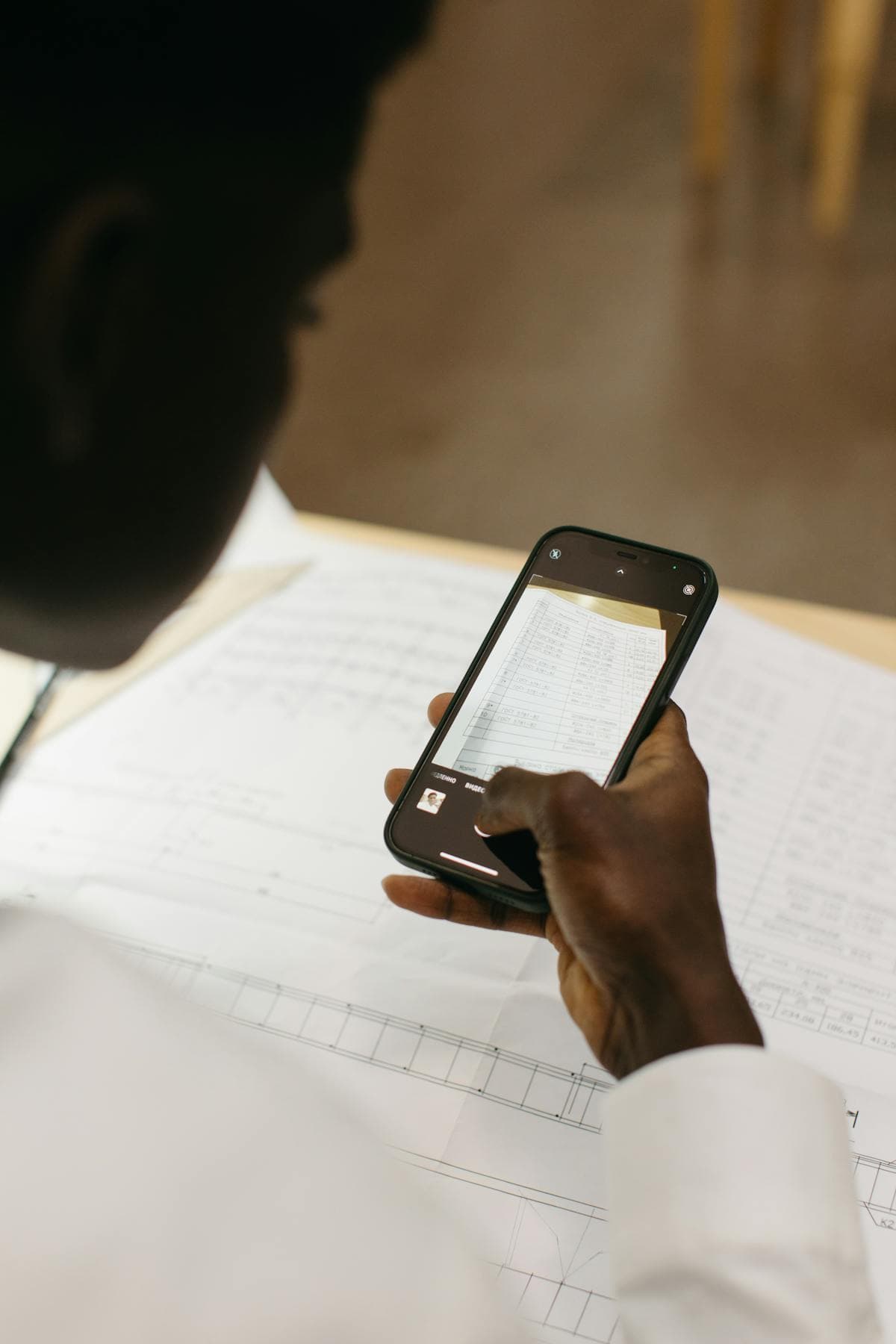
Digitizing paper documents. Scan contracts, invoices, letters, and forms to create searchable digital copies. This is the most common business use case. Once digitized, documents are searchable, editable, and can be stored without physical space.
Extracting text from screenshots. You see an error message, a code snippet, or a piece of text in an image that you need to copy. Instead of retyping it manually, OCR extracts the text instantly. This is especially useful for text in videos, webinars, or slide presentations you cannot directly copy from.
Receipt scanning for expenses. Photograph receipts and extract the vendor name, date, amount, and line items. This saves manual data entry when filing expense reports or tracking business costs.
Reading handwritten notes. AI-based OCR can handle reasonably neat handwriting. It will not match the accuracy of printed text OCR, but it is good enough to capture meeting notes, whiteboard content, and journal entries.
Translating text in images. Photograph a sign, menu, or document in a foreign language. OCR extracts the text, and you can paste it into a translator. Google Lens and Apple Live Text combine these steps, but standalone OCR tools give you more control.
Archiving old books and documents. Libraries, genealogists, and historians use OCR to digitize old printed materials. Specialized OCR models trained on historical typefaces handle this better than general-purpose tools.
After extracting text, you may need to clean it up. OCR output often has inconsistent capitalization or spacing. The Text Case Converter fixes capitalization issues quickly.
**Digitizing paper documents.** Scan contracts, invoices, letters, and forms to create searchable digital copies.
Getting Better OCR Results: Input Quality Matters
The single biggest factor in OCR accuracy is image quality. A blurry, dark, or skewed photo will produce poor results regardless of how good the OCR engine is.
Resolution: aim for at least 300 DPI for scanned documents. Phone cameras generally capture enough resolution for OCR, but zoom in if the text is small. More pixels per character means better recognition.
Lighting: even, diffused lighting without shadows or glare. The shadow from your hand holding the phone is a common problem. Use a document scanning app that processes the image, rather than the default camera.
Angle: photograph documents straight on, not at an angle. Most OCR tools include automatic perspective correction, but starting with a straight image gives better results. Flatbed scanners are ideal for accuracy.
Contrast: dark text on light paper is easiest. If the paper is colored or the text is faded, increase contrast in an image editor before running OCR.
Focus: the text must be sharp. Motion blur from hand movement or shallow depth of field that leaves part of the page blurry will cause errors in those areas.
File format: PNG and TIFF preserve image quality better than JPEG for OCR purposes. JPEG compression introduces artifacts around text edges that can confuse the recognition.
For multi-page documents, scanning apps like Adobe Scan, Microsoft Lens, and Apple's built-in document scanner produce better input than raw camera photos. These apps automatically crop, straighten, and enhance the image for OCR.
Handling Different Types of Text
Printed text in standard fonts: 99%+ accuracy with any modern OCR tool. This is the solved case.
Printed text in unusual fonts: decorative, script, or display fonts reduce accuracy significantly. Art nouveau headers, gothic lettering, and highly stylized logotype text are difficult. If OCR fails, you may need to type these manually.
Handwritten text: accuracy ranges from 70% to 95% depending on handwriting neatness and the OCR model. Neat, separated letters work best. Cursive handwriting is harder. Doctor's prescriptions remain largely unsolvable. For best results, use OCR tools specifically trained on handwriting (like Google Cloud Vision's handwriting mode).
Tables and structured data: OCR extracts the text but often loses the table structure. Dedicated table extraction tools reconstruct rows and columns, but general OCR tools tend to flatten tables into sequential text. Check the output carefully and manually reconstruct the structure if needed.
Mixed languages: if a document contains text in multiple scripts (e.g., English and Chinese), make sure the OCR tool supports both. Some tools auto-detect the language per region, while others require you to specify the language upfront.
Mathematical formulas: standard OCR treats math notation as regular text and gets confused by superscripts, subscripts, Greek letters, and operators. Specialized tools like Mathpix handle math OCR specifically.
After extracting text, run a word count with the Word Counter to verify you captured all the content. If the word count is significantly lower than expected, some text regions may have been missed.
Free OCR Tools: What to Expect
Free online OCR tools handle standard printed documents well. Here is what varies between them:
Language support: some tools support 50+ languages, others only English and a few major languages. Check support for your specific language before uploading sensitive documents to a random tool.
File size limits: free tiers typically cap at 5-15 MB per image or 10-20 pages per PDF. For larger documents, you need to split them first.
Output formats: plain text is always available. Some tools also output Word documents, searchable PDFs, or structured data (JSON/CSV for tables). The more output options, the less post-processing you need.
Privacy: free OCR tools process your images on their servers. For confidential documents (financial records, medical records, legal documents), consider offline OCR software that processes everything locally. Tesseract is a free, open-source OCR engine that runs on your machine.
Batch processing: free tools usually process one image at a time. If you have 50 pages to digitize, this means 50 individual uploads. Paid tools and desktop software handle batch processing.
The PDF Text Extractor is useful when you have a PDF that already contains text layers (as opposed to a scanned image PDF). It extracts the embedded text directly without OCR, which is faster and 100% accurate since it reads the actual text data rather than recognizing characters from an image.
For scanned PDFs (where each page is an image), you need OCR. For born-digital PDFs (created from Word, HTML, or other text sources), direct text extraction is better.
FAQ
How accurate is free online OCR?
For clean printed text on white paper, accuracy is typically 95-99%. For photos of documents taken with a phone camera, accuracy drops to 85-95% depending on image quality. Handwritten text accuracy is 70-90%. These numbers are for character-level accuracy. Even 95% accuracy means roughly 1 error per 20 characters, which adds up in long documents.
Can OCR handle PDF files or only images?
Most OCR tools accept both images (PNG, JPEG, TIFF) and PDF files. For PDFs, the tool converts each page to an image and then runs OCR. Some tools also handle multi-page PDFs, producing a single text output for the entire document.
Is OCR text output always perfectly formatted?
No. OCR extracts the text content but often loses formatting: columns merge into single lines, headers mix with body text, table structure disappears. Post-processing is usually needed to restore the original layout, especially for complex documents with multiple columns or mixed content types.
Can I use OCR on a phone without uploading to a website?
Yes. Both iOS (Live Text) and Android (Google Lens) have built-in OCR that works locally on the device. Point your camera at text and you can select, copy, and translate it instantly. For document scanning, apps like Adobe Scan and Microsoft Lens offer OCR with automatic cropping and enhancement.
### How accurate is free online OCR.
LLM Pricing Comparison 2026: How Much Does AI Really Cost?
LLM pricing compared: GPT-4o, Claude, Gemini, Llama, Mistral, DeepSeek. Cost per million tokens, batch discounts, and budget examples to plan your AI spend.
How to Fine-Tune LLMs: Data Format Guide for 2026
Fine-tuning data format guide for OpenAI, Anthropic, and Google. JSONL examples, validation tips, and best practices for preparing training data.
AI Context Windows and Token Limits Explained
Context window and token limits explained: what they are, how they differ across GPT-4o, Claude, and Gemini, and strategies for managing token constraints.