Why Branded QR Codes Outperform Plain Ones
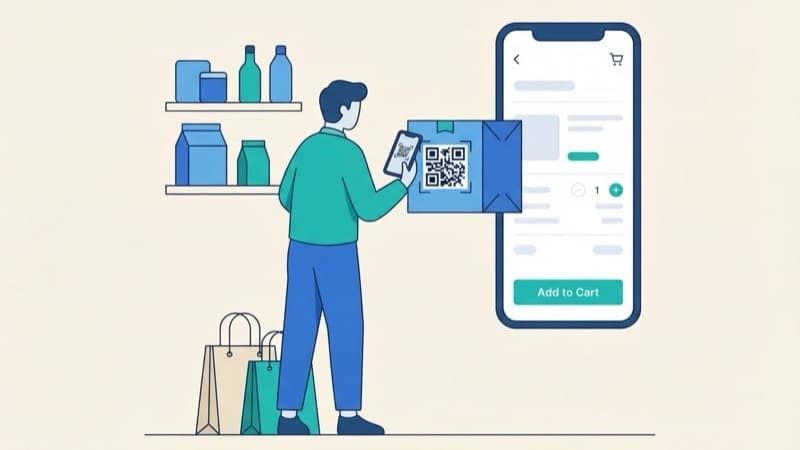
A plain black-and-white QR code works. It scans, it routes, it does its job. But on a flyer, a business card, a product label, or a restaurant menu, it looks like every other QR code on the planet. Branded QR codes - with your logo in the center, your brand colors instead of black, and a custom frame around the edge - solve two problems at once.
The first is recognition. A QR code that carries your logo communicates ownership and authenticity. Customers know the code is yours before they scan it, which matters when QR fraud (sticker-overlay scams in parking meters, restaurants, and event signage) has made people more cautious about pointing their camera at random squares.
The second is conversion. Studies from companies like Beaconstac and Uniqode consistently show branded QR codes get scanned 20-30% more often than plain ones. The reason is simple: a logo signals legitimacy, and color creates contrast against the surrounding context. A black-on-white code on a colorful flyer fights for attention. A code styled in the flyer's palette feels intentional, which translates directly into more scans.
A branded QR code is not just a code with a logo glued on. It is a deliberate design decision that improves trust, recognition, and scan rates in a single change.
This guide walks through the practical steps to create a branded QR code for free, the design rules that keep it scannable, and the mistakes that turn a beautiful code into a broken one.
Step 1: Generate the Base QR Code
Start with the destination URL. For a marketing campaign, this should usually be a tracked link (using UTM parameters or a short URL service) so you can measure scans separately from other traffic sources. For a menu, a contact card (vCard), or Wi-Fi credentials, the data type matters more than tracking.
The QR code generator on ToolForte handles every standard data type: URLs, plain text, email, phone numbers, SMS, vCards, and Wi-Fi network credentials. It runs entirely in your browser, so the data you encode never leaves your device. That matters for sensitive use cases like internal Wi-Fi codes or staff-only contact details.
Pick the right error correction level
This is the single most important technical setting, and the one most people get wrong. Error correction tells the QR code how much damage or obstruction it can tolerate and still scan. There are four levels:
- L (Low) - 7% damage tolerance. Smallest code, but no headroom for a logo overlay.
- M (Medium) - 15% damage tolerance. Default for plain codes.
- Q (Quartile) - 25% damage tolerance. Good for logos up to ~20% of the code area.
- H (High) - 30% damage tolerance. Required for prominent logo overlays or codes printed on rough surfaces.
For a branded QR code with a center logo, always use H. The logo will physically cover part of the code, and the H-level redundancy is what lets the scanner reconstruct the missing data. If you generate the code at level M and drop a logo on top, you have a 50/50 chance the code still scans, and the failures will be silent.
The trade-off is size: H-level codes are denser (more modules per side) for the same payload. If your destination URL is long, shorten it first. A 25-character URL at level H produces a much cleaner code than a 120-character one.
Step 2: Choose Brand Colors That Actually Scan
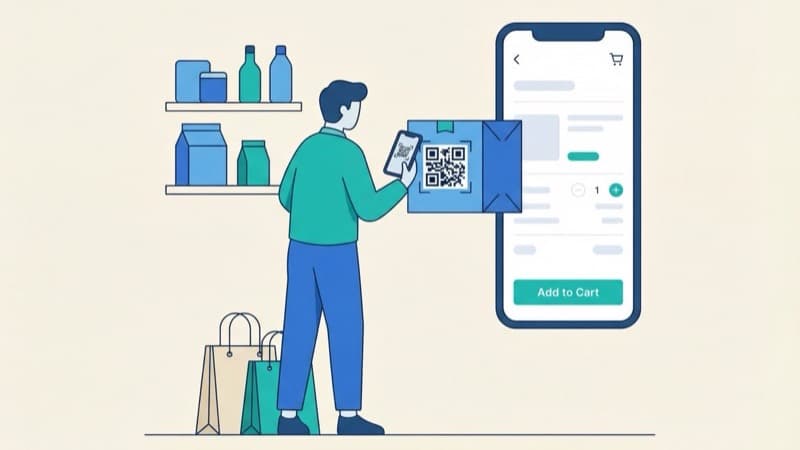
Color is where most DIY branded codes go wrong. The QR specification requires high contrast between the foreground (modules) and background. The dark squares need to be significantly darker than the light areas: a contrast ratio of at least 4:1, and ideally 7:1 or higher.
What this means in practice:
- Foreground: must be a dark color. Dark navy, deep maroon, forest green, charcoal - anything that reads as 'dark' to a phone camera in mixed lighting works.
- Background: must be very light or white. Cream, pale tints, off-white - all fine. Mid-tones break.
- Never invert: a light foreground on a dark background scans inconsistently across phones. Most scanners are tuned to expect dark-on-light and some refuse to read inverted codes at all.
Match your brand palette
If you do not already have a defined brand color system, the color palette generator builds harmonized palettes from a single seed color. Pick your darkest brand color for the QR foreground, the lightest as the background, and you have a code that fits visually with the rest of your marketing.
For finer color control, the color picker gives you exact hex codes from any source. Upload your logo, click the dominant dark color, copy the hex, paste it into the QR generator. Five seconds, perfect color match.
Test every color combination on at least three phones (iPhone, recent Android, older Android) in three lighting conditions (bright daylight, indoor office, dim evening). If it scans cleanly in all nine combinations, ship it. If even one fails, increase contrast.
Step 3: Add Your Logo Without Breaking the Code
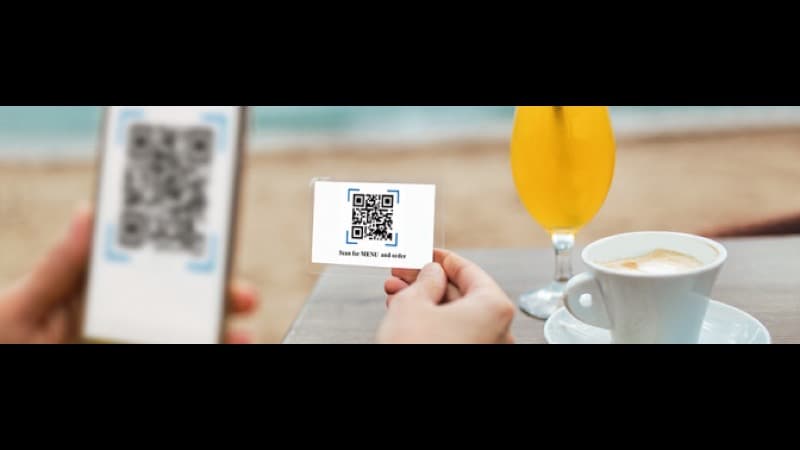
The logo overlay is the visual centerpiece. Done well, it makes the code unmistakably yours. Done badly, it makes the code unscannable.
Logo size rules
- Maximum logo area: 20% of the total code area (about 30% of the side length squared). Larger overlays push past what even H-level error correction can recover.
- Center placement only: QR codes have three position markers in the corners (the large square targets). Logos must never cover these, because they are how scanners orient the code.
- Solid background behind the logo: punch a clean square or circle out of the code and place the logo on a solid white (or background-color) fill. Avoid blending the logo into the modules, which creates visual noise that confuses scanners.
Logo file requirements
Use a PNG with transparent background at 2-3x the final display size for crisp rendering. If your source logo is a JPG with a white background, you have two options: convert it to PNG with proper transparency, or design the QR with a matching solid color where the logo sits.
If your logo file is large, the image compressor shrinks it without losing visual quality before you upload it to the QR generator. A 50KB compressed PNG renders just as cleanly as a 2MB original and saves time on every regeneration.
Generating logo variants
If you want matching favicons, app icons, and social media variants of the same logo, the favicon generator produces a complete icon set from a single source image. Useful when the QR code is part of a larger brand rollout: business cards, website favicon, app icon, and printed materials all carrying the same visual mark.
Step 4: Test, Print, and Track
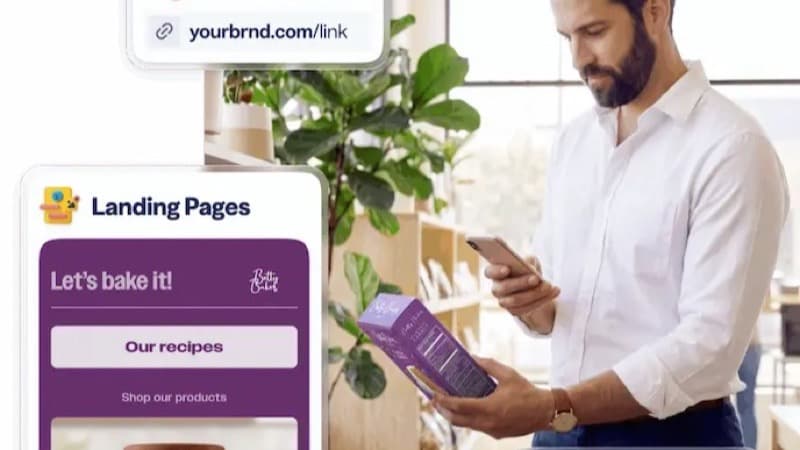
Before you commit the design to printed materials, test ruthlessly.
The five-phone test
Scan the code with: an iPhone (current iOS), a Pixel or Samsung (current Android), an older Android (anything 2-3 years old still represents a huge share of users), a budget phone if you can find one, and a tablet. If all five scan within two seconds in normal indoor light, the code is solid.
Print size matters
The rule of thumb: minimum 2 cm x 2 cm (about 0.8 inches) for short-range scanning like a business card, and at least 1/10th of the viewing distance for posters and signage. A QR code on a billboard 10 meters away needs to be at least 100 cm on each side, much bigger than people instinctively design.
For digital displays (websites, social posts, slide decks), 300x300 pixels is the practical minimum. Smaller and the modules become too thin for camera sensors to resolve reliably.
Surface and material
Matte finishes scan better than glossy ones. Gloss creates specular highlights that confuse the contrast detection. On dark-colored shirts, packaging, or fabrics, print the code on a white sticker or label rather than directly on the dark surface. On curved surfaces (cans, bottles, mugs), allow extra quiet zone (the blank margin around the code), because the curvature distorts the modules at the edges.
Track what works
Use UTM parameters on the destination URL: ?utm_source=qr&utm_medium=print&utm_campaign=spring2026. Google Analytics and most analytics platforms break out QR traffic as its own segment, letting you measure scan rates by placement (flyer vs. menu vs. business card) and iterate on the design.
Before you commit the design to printed materials, test ruthlessly.
Common Mistakes to Avoid
Three failure patterns show up repeatedly in DIY branded QR codes:
- Logo too large. A 40%-area logo looks great on screen but produces 'this code is not recognizable' errors on half of all phones. Stick to the 20% rule.
- Insufficient contrast. Pastel-on-pastel codes (light blue on cream, lavender on white) look on-brand but fail in low light or with older cameras. Test in dim conditions before printing.
- No fallback. Always print a short URL or instruction below the code (e.g., 'or visit example.com/menu'). Maybe 5-10% of users still cannot scan QR codes reliably, and a single line of fallback text rescues every one of them.
A fourth, subtler mistake: never reuse a QR code for a different destination after printing it. The code is generated from the URL. If you change the URL, you need a new code. The exception is dynamic QR codes from services like Beaconstac or Bitly, which encode a redirect URL you can change server-side. Static codes (what most free generators produce) are permanent.
Frequently Asked Questions
Can I make a QR code with a logo for free?
Yes. The QR code generator supports logo upload, custom colors, and high error-correction levels at no cost. There is no signup, no watermark, and no download limit. The generated PNG/SVG is yours to use commercially.
What is the best file format - PNG or SVG?
SVG for print and large displays - it scales without quality loss. PNG for digital use (websites, emails, social media) where SVG support can be inconsistent. Generate both if your generator supports it, and use the right format for each medium.
Will a colored QR code scan as reliably as a black one?
Yes, if the contrast is sufficient (dark foreground on light background) and the colors are tested across multiple phones. The scanner does not care about hue - it cares about luminance contrast. A dark navy code on a cream background scans identically to a black-on-white code.
Why does my QR code work on some phones but not others?
Three common causes: (1) error correction is too low for the logo overlay, so raise it to H; (2) contrast is borderline, so darken the foreground or lighten the background; (3) print resolution is too low and modules at the edge are blurring together. Older Android phones with budget cameras are the strictest test - if it works there, it works everywhere.
How do I make the QR code match my brand exactly?
Use the color picker to extract exact hex codes from your logo or existing brand assets, then enter those hex values into the QR generator. For a full matching palette (primary, secondary, accent), the color palette generator builds harmonized colors that work together. Keep the foreground in the dark end of the palette and the background in the light end for guaranteed scannability.
Do branded QR codes expire?
Static codes (the kind generated by free tools) never expire. They encode the URL directly and work as long as that URL works. Dynamic codes (from paid services) can be edited, but rely on the redirect service staying online. For most marketing use cases, static codes are the safer choice: no subscription, no expiry, no dependency.
### Can I make a QR code with a logo for free.